Your TV recommends.
You choose where it opens.
Google TV's home screen suggests a movie, you click it. TVRelay intercepts that click and opens the title in the player you picked.


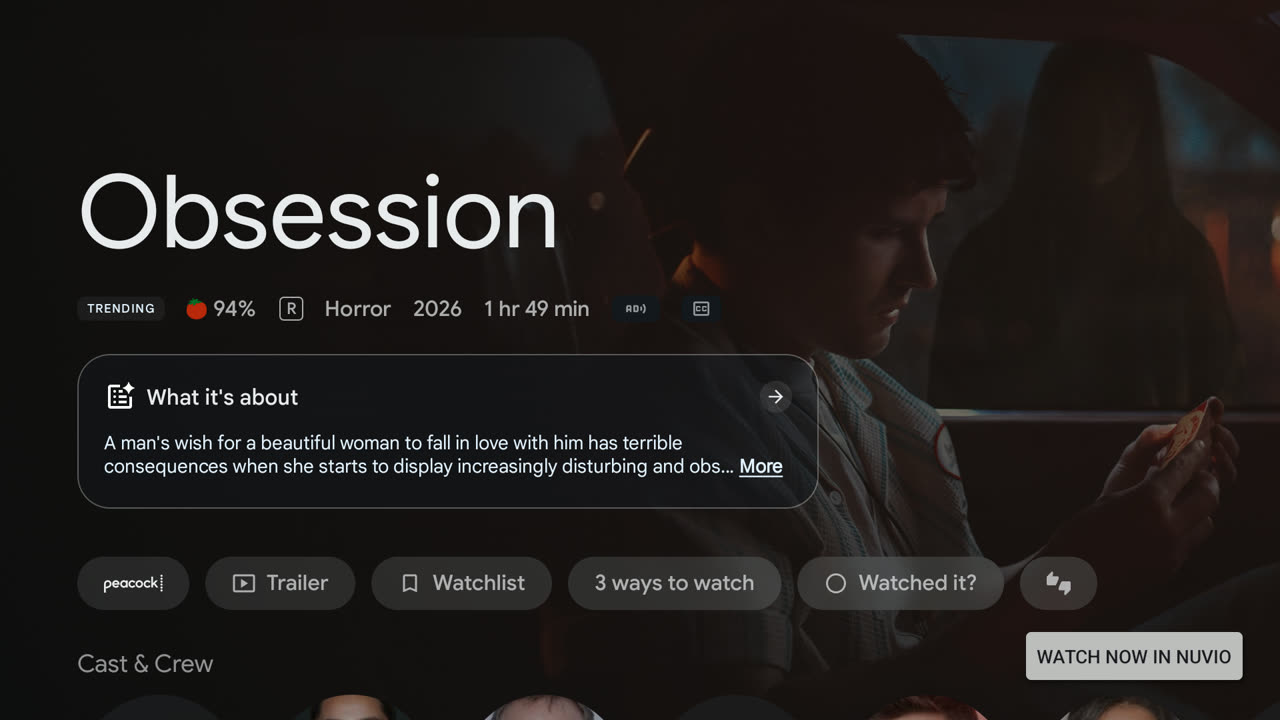
Click → lookup → hand-off.
How it works
One narrow job, done carefully
Android's Accessibility API lets an app observe what's on screen for assistive purposes. TVRelay uses it narrowly — watching only for clicks on the Google TV launcher. Every other click, app icons, menus, anything that isn't a recommendation, is left completely alone, and nothing is read, stored, or sent anywhere beyond that one lookup. The code is open source, you can look it up.
01
Catch the click
You select a recommendation on the Google TV home screen. TVRelay sees the click's payload — nothing else on screen.
02
Identify the title
If the payload contains a movie or show title, it's looked up via TMDB by default — or TheTVDB, if you switch.
03
Hand it off
A "Watch now in {App}" button appears over the launcher. Tap it and the title opens in your player.
Requirements
A device with the Google TV launcher — Chromecast with Google TV, or Google TV editions from Sony, TCL, Hisense. Plus whichever of Nuvio, Stremio, WuPlay, Jellyfin, or Wholphin you plan to pick in Settings.
No strings
No account, no subscription, no license check. TVRelay hosts and provides no content itself — it reads a title, looks it up, and hands you off to an app you chose.
Installation
Sideload the APK
TVRelay isn't on Google Play yet. Grab the APK from the latest release, then use whichever route suits you.
- On the TV, install Send Files to TV from Google Play.
- Open it on the TV — it shows an address or QR code to connect from your phone.
- From your phone's browser, go to that address and pick the APK you downloaded from Releases.
- Once it transfers, the TV will let you start the installation.
- If Android TV warns about an unknown source, temporarily allow installation from that source.
No computer needed — the easier path if you've never used ADB. You'll enable Accessibility by hand afterwards; see Setup.
01
Download the APK from Releases.
02
Enable developer options on the TV: Settings → Device Preferences → About → tap "Build" seven times.
03
Turn on USB debugging or Network debugging, then run these two commands from your computer.
adb connect <tv-ip>:5555
adb install TVRelay.apk
That's the whole installation. You still enable Accessibility in the app afterwards — or, if your device won't let you, with the optional ADB commands below.
- On the TV, install the Downloader app (by AFTVnews) from Google Play.
- Open it and enter the code 9525208 in the URL field.
- Downloader fetches the APK and offers to install it straight away.
- If Android TV warns about an unknown source, temporarily allow installation from that source.
Setup
Pick a player, then two toggles
Open TVRelay from the TV's launcher, accept the first-run disclosure, and pick your player. Then work through the two permissions below.
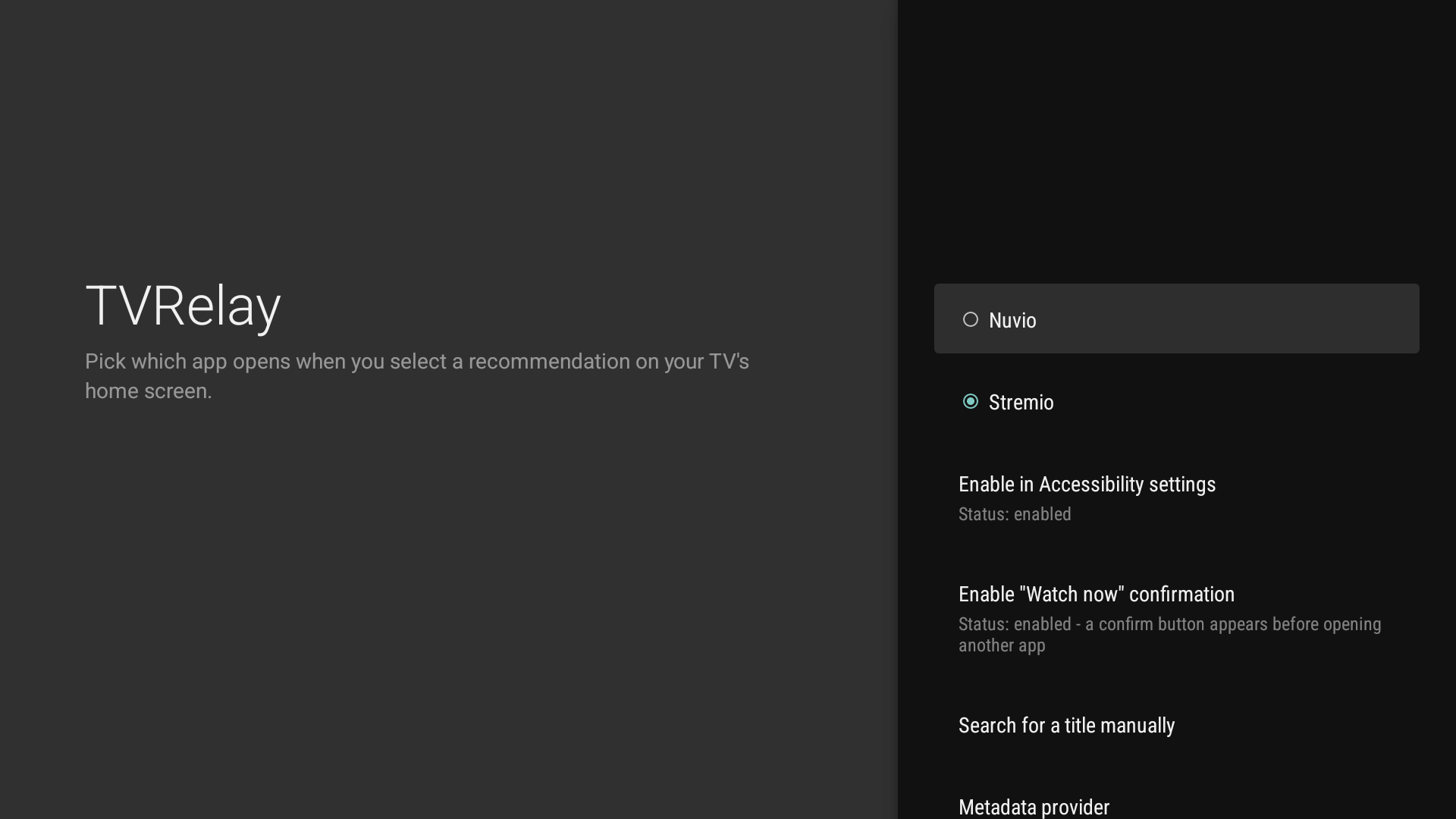
1 · Enable in Accessibility settings
Select "Enable in Accessibility settings" and turn the service on there. This is the permission that lets TVRelay see launcher clicks at all — without it, nothing else in the app does anything.
If the toggle turns itself off
On Android 13+ the system blocks sideloaded apps from turning Accessibility on through the normal toggle, as a security measure. If it switches back off right after you enable it, that's why — not a bug.
When it happens, TVRelay adds an "Accessibility not turning on? Get help" row to Settings that walks you through the fix (look for "Allow restricted setting" on the app's system info screen). If your device doesn't have that option, use the optional ADB commands below instead.
2 · Enable the "Watch now" confirmation
A loading indicator appears the moment you click a recommendation, then swaps to the confirm button once the title's been identified. Dismissing it with Back or a D-pad press only hides it — it reappears a few seconds later, and keeps doing so until you return to the launcher's home screen, so a moment's distraction doesn't lose your result. (Settings → "Reappear after dismissing" if you'd rather a dismissal be final.)
The button is a small overlay drawn on top of whatever the launcher navigates to, so it needs "Display over other apps". Grant it from Settings → "Enable 'Watch now' confirmation", which takes you straight to the right system screen.
Without that permission TVRelay still works — it just opens your player immediately, with no accidental-click protection.
Optional: enable Accessibility over ADB
only if the toggle won't stay onMost people never need these. They're for devices where Android blocks the Accessibility toggle for sideloaded apps, or where there's no "Allow restricted setting" option to find. Safe to run either way — the first line lifts the restriction, the last two switch the service on at system level.
adb shell appops set com.hmartinez94.tvrelay ACCESS_RESTRICTED_SETTINGS allow
adb shell settings put secure enabled_accessibility_services com.hmartinez94.tvrelay/com.hmartinez94.tvrelay.TvRelayAccessibilityService
adb shell settings put secure accessibility_enabled 1
The enabled_accessibility_services line replaces the whole list of enabled accessibility services — if you already use another one (like TalkBack), separate them with a colon rather than overwriting it.
No computer handy? atvTools (free, on Google Play) runs the same commands from your phone. Afterwards, the Accessibility toggle already shows as enabled when you open TVRelay.
Metadata provider
TMDB by default. TheTVDB if you need it.
TVRelay identifies clicked titles through TMDB, using a key bundled with the app — no setup needed at all.
Prefer your own personal TMDB key — say the shared default ever gets rate-limited? Enter one from Settings → Metadata provider (free at themoviedb.org, under Settings → API) and it takes priority automatically. TheTVDB is available as an alternative provider if TMDB ever returns a wrong match.
Typing 32 characters with a TV remote is miserable, so that screen offers "Send key from phone…" — scan the QR, paste the key on your phone, and it lands on the TV within seconds.
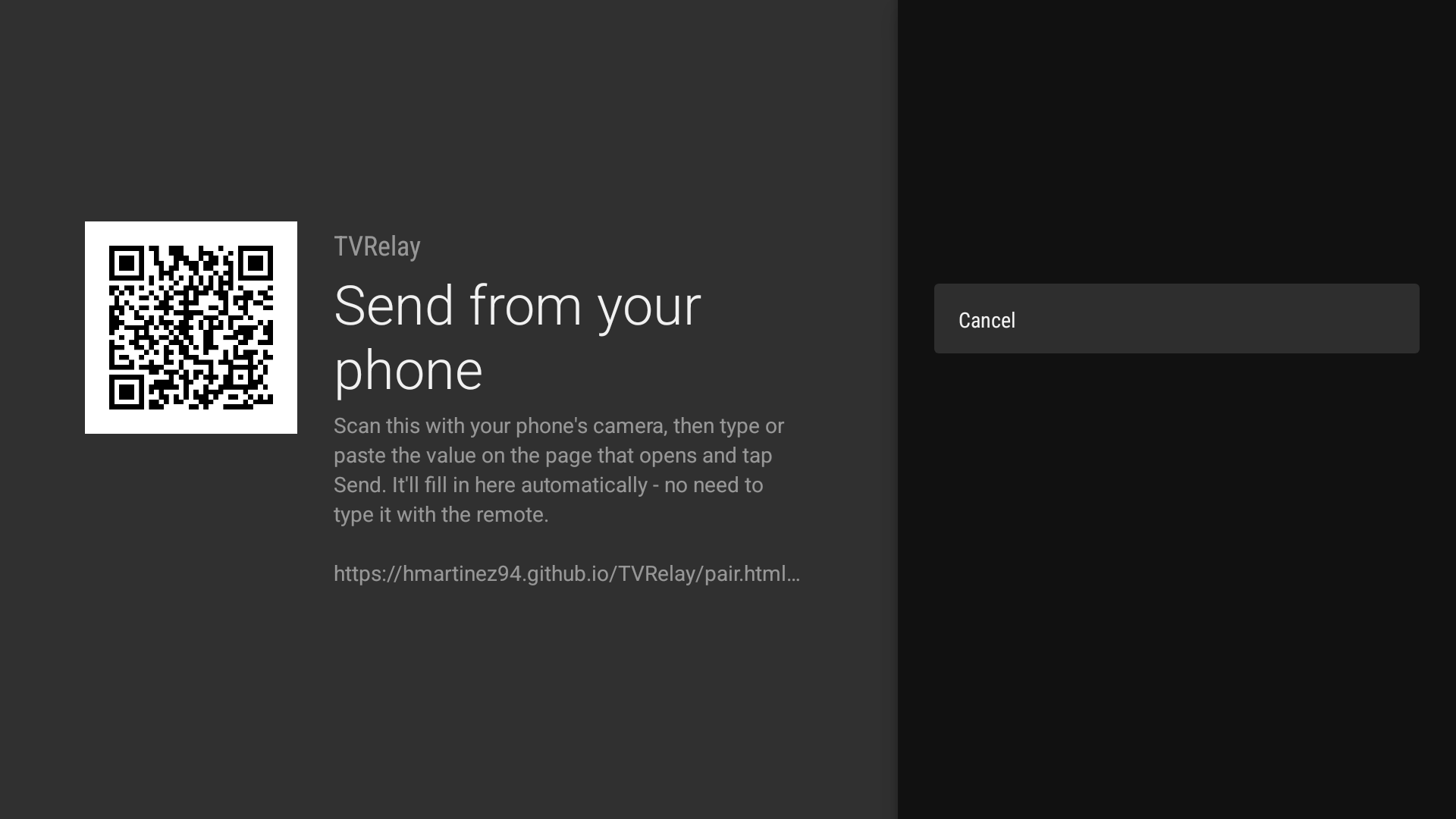
Also in Settings
Three switches worth knowing about
Redirect YouTube recommendations
Sends YouTube video recommendations to SmartTube or TizenTube Cobalt — independent of your movie/show player. See Limitations for why SmartTube is the safer pick.
Screen-reading fallback
Off by default. Reads the title off the screen with on-device text recognition when a card exposes none. Nothing captured leaves the device — but Android shows its screen-recording indicator while it's active.
Ask when a match is ambiguous
When a search returns two or more exact title matches, TVRelay asks which you meant instead of guessing. Turn it off to always pick automatically.
Limitations
What it can't do, plainly
Jellyfin and Wholphin open a search, not the title
Neither has a universal-catalog way for another app to open a specific title, so picking either opens its search screen pre-filled with the title — it'll only find something already on your server. Wholphin is a separate, open-source client for a Jellyfin server, not the official app — turn on "Find in library first" (Settings) for either one, and a title already on your server opens directly instead. Nuvio, Stremio, and WuPlay resolve against their own online catalogs, so they can open a title you don't already have.
TizenTube Cobalt is unreliable as a YouTube target
It only accepts a search from TVRelay the first time it opens after being fully closed; once running in the background, the same search silently lands on its home feed, and no app can force another to restart. Officially supported only alongside TizenTube Bridge — which needs the official YouTube app uninstalled (often impossible on certified Google TV devices) and isn't confirmed to fix this either. SmartTube doesn't have this limitation.
Fire TV: work in progress
The recommended fix is to replace Fire OS's launcher with a custom launcher or the real Google TV launcher, rather than hunting for another way into Fire OS's own home screen. Once that's installed TVRelay works exactly as on a real Google TV device — it's no longer Amazon's launcher in the way.
This needs temporary root on the Fire TV Stick, which isn't something TVRelay does or is involved in — a device-level change you make yourself, at your own risk:
Some cards expose no title at all
Certain recommendation cards and voice-search results hand third-party apps no title — a real limit of the launcher, not a bug — and clicking one does nothing by default. One way through: the screen-reading fallback.
And the provider can still occasionally match a same-named but different title — a genuine catalog-coverage gap. Try the other provider, or a manual search with the year added.
Troubleshooting
When it doesn't fire
Stop landing in the wrong app.
Free, no account, no subscription, no license check.